S3 Profile Image Upload
Author(s)
- Dipak Mourya
- Yeasa Mondal
Last Updated Date
2026-04-14
SRS References
Version History
| Version | Date | Changes | Author |
|---|---|---|---|
| 1.0 | 2026-04-14 | Initial draft | Dipak Mourya, Yeasa Mondal |
Feature Overview
Objective:
Allow users to upload and update their profile picture from the frontend profile section. The image is uploaded directly to AWS S3 via a presigned URL generated by the backend, minimizing server load. Once uploaded, the backend validates the image in S3 and persists the profile picture URL to the database.
Scope:
- Frontend profile section UI trigger for image selection and upload
- Backend API to generate a presigned S3 upload URL
- Direct browser-to-S3 upload using the presigned URL
- Backend confirmation API to validate the upload and persist the profile URL
- Frontend state update to reflect the new profile image
Dependencies:
- AWS S3: Storage for profile images
- AWS Presigned URL: Secure, time-limited direct upload mechanism
- Auth Service (Backend): Generates presigned URLs and confirms uploads
- Frontend (React/TypeScript): Profile section UI and HTTP service layer
UI Screens
Profile Page — Avatar with Edit Trigger
The Profile page displays the user's current profile picture (or initials avatar if no image is set). A pencil icon overlaid on the avatar acts as the entry point for updating the profile image.
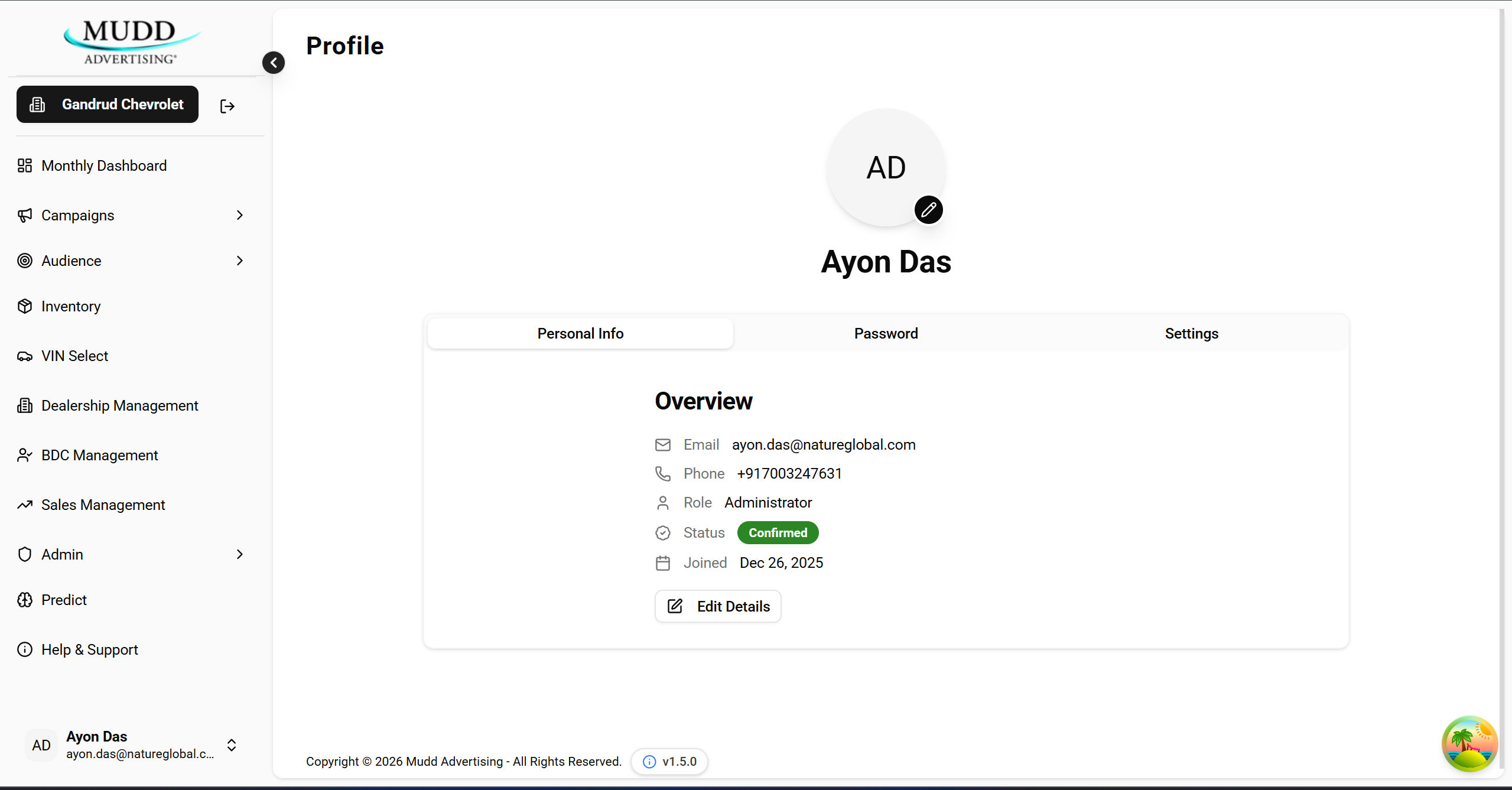
UI Elements:
| Element | Description |
|---|---|
| Avatar / Initials | Circular avatar showing the user's profile picture or initials (e.g. "AD") |
| Pencil (Edit) Icon | Small edit button overlaid on the bottom-right of the avatar; opens the image editor modal when clicked |
| User Name | Displayed below the avatar |
| Personal Info tab | Active tab showing user overview (Email, Phone, Role, Status, Joined date) |
Behaviour:
- If no profile picture has been uploaded, the avatar shows the user's initials.
- Clicking the pencil icon opens a file picker. Once a file is selected, the Edit & Adjust Profile Image modal is shown.
Edit & Adjust Profile Image Modal
After selecting an image file, the user is presented with a modal to crop, zoom, and rotate the image before saving.
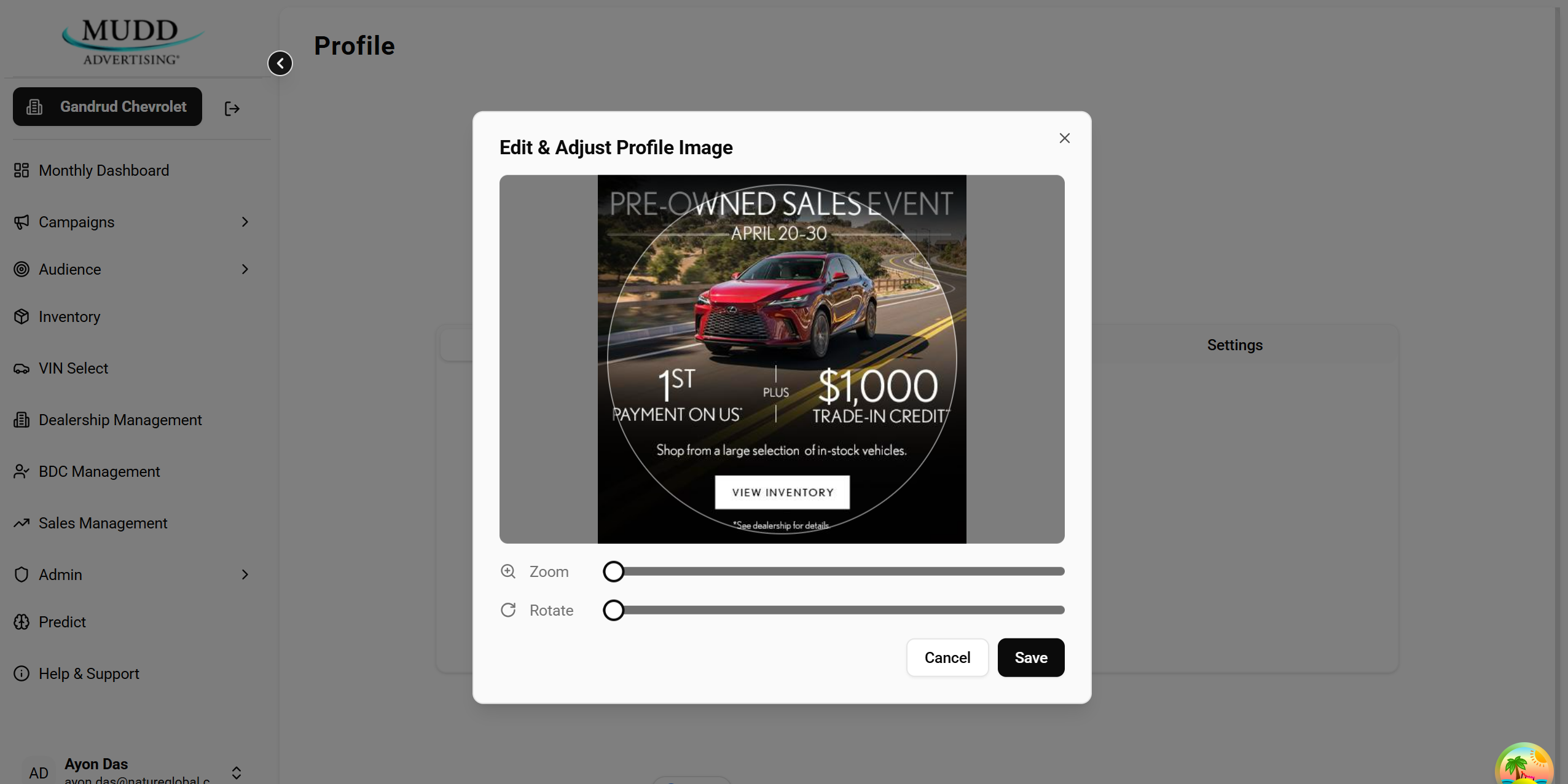
UI Elements:
| Element | Description |
|---|---|
| Image Preview | Circular crop preview of the selected image |
| Zoom Slider | Allows the user to zoom in/out on the image within the crop area |
| Rotate Slider | Allows the user to rotate the image within the crop area |
| Cancel Button | Dismisses the modal without uploading; no API calls are made |
| Save Button | Triggers the three-step upload flow (presigned URL → S3 PUT → confirm) |
Behaviour:
- Adjustments (zoom, rotate) are applied client-side before the image
Blobis sent. - Clicking Save initiates the
updateProfileImagefunction with the cropped/adjustedBlob. - On success, the avatar on the Profile page is updated to display the new image.
- On failure, an error message is shown and the avatar remains unchanged.
API Interfaces
| Endpoint | Method | Request Body | Response | Status Codes |
|---|---|---|---|---|
/api/auth/user/picture/upload-url | POST | { "fileName": "string", "contentType": "string" } | { "photoKey": "string", "uploadUrl": "string", "expiresAtUtc": "ISO8601 datetime" } | 200 OK, 400, 401, 500 |
| AWS S3 Presigned URL (external) | PUT | Raw image binary (Blob) with Content-Type header | Empty body on success | 200 OK, 403 Forbidden |
/api/auth/user/picture/uploaded | POST | { "photoKey": "string" } | { "message": "string" } / 204 No Content | 200 OK, 204, 400, 401, 500 |
Implementation Details
Upload Flow Overview
The profile image upload follows a three-step presigned URL pattern to upload images directly to S3 without routing the binary data through the backend server.
Frontend (Profile Section)
        │
        │ 1. User selects image
        ▼
POST /api/auth/user/picture/upload-url
{ fileName, contentType }
        │
        │ 2. Backend generates presigned S3 URL
        ▼
Response: { photoKey, uploadUrl, expiresAtUtc }
        │
        │ 3. Browser PUT to AWS presigned URL
        │    Headers: Content-Type: image/jpeg (or actual type)
        │    Body: raw image Blob
        ▼
AWS S3 (direct upload)
        │
        │ 4. Confirm upload with backend
        ▼
POST /api/auth/user/picture/uploaded
{ photoKey }
        │
        │ 5. Backend validates object in S3,
        │    saves photokey in the cognito default attribute 'picture' and in  the Mudd db tblMudd_user photo_url column,
        │    returns updated profile info
        ▼
Frontend updates profile image in UI state
Resolve Profile Image URL on Fetch
When the frontend fetches Profile data or the User List, the backend reads the stored photoKey from the database (for example, from the Mudd user table and Cognito picture attribute mapping).
Using that photoKey, the backend resolves the image URL from S3 ( short-lived read URL as per environment configuration) and includes that URL in the API response.
The frontend uses this returned image URL directly to display the user profile picture in avatar and list views.
Previous Image Cleanup
As part of the complete upload confirmation API flow, the backend first checks whether the user already has a previously saved profile image.
If an old image exists, the backend reads the previous photoKey and deletes that old object from S3 before completing the update with the new photoKey.
Also there is a delete picture api that can be used to delete the profile picture(delete object from s3, and photo key from cognito and mudd db).
Step 1 — Get Presigned Upload URL
The frontend calls the backend to obtain a time-limited presigned URL and the photoKey that identifies the object in S3.
Request
POST /api/auth/user/picture/upload-url
Content-Type: application/json
Authorization: Bearer <token>

{
  "fileName": "profile.jpg",
  "contentType": "image/jpeg"
}
Response
{
  "photoKey": "users/abc123/profile.jpg",
  "uploadUrl": "https://s3.amazonaws.com/bucket/users/abc123/profile.jpg?X-Amz-Signature=...",
  "expiresAtUtc": "2026-04-14T07:26:54.954Z"
}
Step 2 — Upload Image Directly to S3
Using the uploadUrl returned in Step 1, the frontend performs a PUT request directly to AWS S3. No auth headers are needed; the presigned URL carries the authorization.
PUT <uploadUrl>
Content-Type: image/jpeg

<raw image binary>
Step 3 — Confirm Upload with Backend
After a successful S3 upload, the frontend notifies the backend using the photoKey. The backend verifies the object exists in S3 and is valid, then saves the photokey to the cognito and mudd database.
Request
POST /api/auth/user/picture/uploaded
Content-Type: application/json
Authorization: Bearer <token>

{
  "photoKey": "users/abc123/profile.jpg"
}
Response
{
  "message": "Profile picture updated successfully."
}
Backend Responsibilities
Generate Presigned URL (/api/auth/user/picture/upload-url)
- Authenticate the request via JWT token.
- Generate a unique
photoKey(e.g.,users/{userId}/profile_{timestamp}.jpg). - Use the AWS SDK to create a presigned
PUTURL for the S3 bucket, scoped to the generatedphotoKeyand the providedcontentType. - Return
photoKey,uploadUrl, andexpiresAtUtc.
Confirm Upload (/api/auth/user/picture/uploaded)
- Authenticate the request via JWT token.
- Use the
photoKeyto check that the object exists in S3 (e.g., viaHeadObject). - Validate the object metadata (size, content-type) as needed.
- Construct the full S3 public/CDN URL for the
photoKey. - Persist the new profile picture URL to the user record in the database.
- Return success response.
Error Handling
| Scenario | Behaviour |
|---|---|
| Presigned URL request fails | Error thrown with server message; upload flow aborted |
| S3 PUT upload fails | "Failed to upload image to storage" error thrown |
| Confirmation API returns error | Error thrown with server message; profile URL not persisted |
| Presigned URL expires before upload | S3 returns 403 Forbidden; user should retry the upload |
Security Considerations
- Presigned URLs are short-lived (
expiresAtUtc) and scoped to a single S3 key and HTTP method (PUT). - The
photoKeyis server-generated and tied to the authenticated user, preventing path traversal or overwriting other users' images. - JWT authentication is required on both backend endpoints; S3 is not publicly writable.
- Backend validates the S3 object exists before persisting the URL to the database, preventing phantom/broken profile pictures.